Multiple WhatsApp communities for webinars can be managed smoothly when you treat them like a product launch: plan every touchpoint, pre-create content, and use scheduling tools to execute at scale. This article helps you structure your WhatsApp messaging schedule for any event (workshop, masterclass, mastermind). So stay till the end – you’ll get many resources throughout the blog.
Context and scale
For a recent AI-focused weekend workshop at IIDE, six WhatsApp communities were run in parallel with over 5,000 participants, all driven by a detailed message schedule mapped to the event agenda. The goal was to maximize live attendance by using reminders, nudges, and engagement prompts at specific times, rather than sending messages ad hoc.
Step 1: Designing the daily agenda
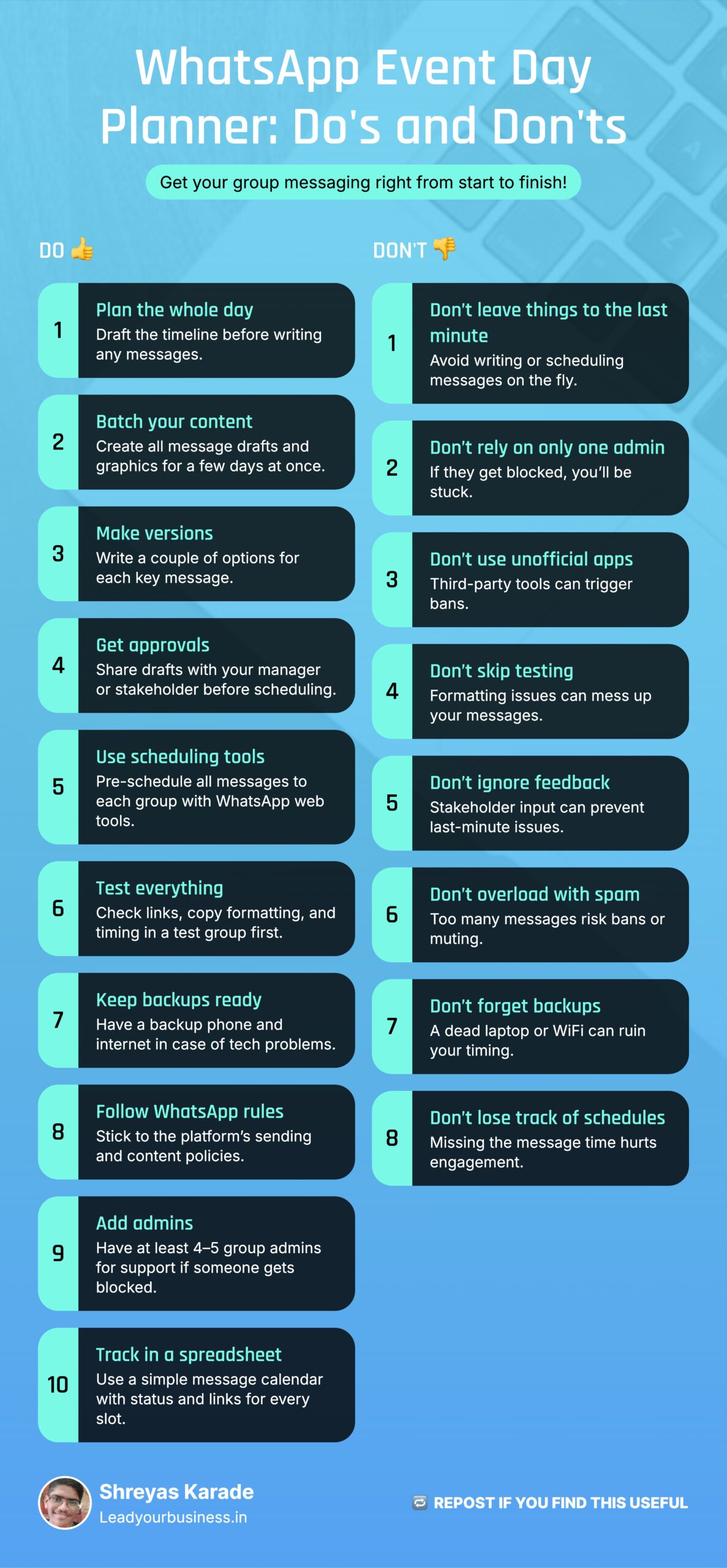
Before any copy is written, the full communication plan for each event day is drafted: what happens in the morning, pre-session, during the session, and post-session. This includes message types such as reminders, polls, FAQs, link drops, and feedback prompts, all aligned with the event flow and learning outcomes. The plan is shared with the program or marketing manager, who suggests edits to timing, tonality, and call-to-actions until there is a final “hour-by-hour” roadmap for the groups.
Step 2: Creating content in batches
Once the agenda is frozen, all content pieces for at least the next three days are drafted in a single pass so that execution never depends on last-minute writing. For each important message (e.g., a key reminder or poll), two to three variations are created so the team can select the version with the clearest copy and strongest hook. Visual creatives—session banners, countdown posts, or simple text-based graphics—are designed alongside the copy so every scheduled slot has both text and creative ready to go.
Step 3: Approval workflow with stakeholders
After drafting, all messages and creatives are collated (often in a sheet or document) and sent to the manager or core stakeholder for review. The reviewer checks for brand alignment, tone, accuracy of links and timings, and suggests minor edits or replacement of certain prompts based on their understanding of the target audience. Final approved messages are then locked in a “ready to schedule” section so the execution team does not have to re-open strategy questions during the live days.
Step 4: Scheduling messages across groups
Running six groups manually is error-prone, so a scheduling layer is essential to ensure that reminders and engagement prompts go out on time in all communities. A WhatsApp Web scheduling extension such as Blueticks allows teams to pre-schedule messages to multiple groups, set specific send times, and even create recurring reminders, which dramatically reduces the chance of missed or delayed communication. While some plans require the laptop to stay online, newer versions and paid tiers support sending even when the computer is off, which is helpful for early-morning or late-night reminders.
Ready to Download Spreadsheet with Pre-Made Messages:
Step 5: Handling reliability and technical issues
During early runs, common issues included unstable internet connections, formatting errors when copying from documents, and short-term WhatsApp restrictions linked to high-volume activity. To mitigate this, teams often keep backup internet options (like mobile hotspots), test formatting in a small internal group before scheduling, and gradually ramp up message volume to reduce the risk of being flagged as spam. Over time, some teams even started building internal tools or extensions on top of WhatsApp Web to manage custom replies, standard responses for FAQs, and more robust scheduling logic tailored to their event workflows.
Step 6: If a WhatsApp account gets temporarily blocked
WhatsApp can temporarily ban numbers if it detects suspicious or automated behaviour, especially when using unsupported third-party tools or sending high-frequency bulk messages. In such cases, the platform usually shows a countdown timer, after which access is restored automatically, though reviews or appeals can sometimes take up to 24 hours or more, depending on the situation. For business use, avoid unofficial apps, follow WhatsApp’s commerce and anti-spam policies, and, if needed, submit a review request via in-app support or Meta Business Support channels.
Step 7: Role of Meta-verified WhatsApp and multiple admins
Using a verified WhatsApp Business account (Meta Verified) can improve trust, message deliverability, and access to priority support when issues such as bans or delivery problems arise. It is also smart to maintain at least four to five admins across the different groups so that if one admin faces a temporary restriction, others can step in with the same scheduling tools and templates without disrupting the communication plan.
Step 8: Using templates and spreadsheets
Behind the scenes, a structured spreadsheet for each event weekend acts as the single source of truth, with columns for date, time, group name, message type, final copy, creative link, and scheduling status. This “message calendar” is especially useful when multiple community managers are involved, as it lets anyone see what is already scheduled, pending, and requiring manual intervention. You can offer this Excel template as a downloadable resource on your blog, so readers can adapt it to their own WhatsApp communities for webinars, bootcamps, or cohort-based courses.